
AI video generation has become very popular in 2026. There are now many AI tools that can create videos from simple prompts, but not every tool works in the same way. Some tools generate only 4-second videos, while others can create 8-second or 10-second clips. Some tools follow your prompt well, but others require you to guide them again and again before you get the result you actually want.
This is one of the biggest problems I have experienced with AI video tools. Sometimes you cannot even give the prompt exactly the way you want, and because of that, you have to spend more time trying different prompts, generating clips again, and fixing the result.
But in my personal experience, Grok is different when it comes to planning and creating longer AI videos.
The interesting thing about Grok is that when you give it a proper prompt, it does not simply try to create a short video immediately. First, it can write a complete story based on your idea.
When you carefully read the story Grok gives you, you can understand how powerful this workflow can be compared with other AI video tools.
Does Grok AI Generate Videos in 2026?
Yes, Grok can be used for AI video creation in 2026, but the interesting part is not only the video generation itself. The real advantage is how you can use Grok to plan the complete video before creating all the scenes.
When you give Grok your prompt, you can tell it what kind of story you want and what you want to happen in the video.
Grok can then help you understand:
- What the story should be.
- What each scene should look like.
- How many seconds each scene should be.
- What action should happen in each scene.
- How one scene should connect with the next.
- What kind of image should be created for the scene.
- How the complete video can continue from one scene to another.
This makes the process much easier because you are not starting every video clip from zero.
Why Short AI Video Tools Can Waste Your Time
There are many AI video tools available today, but most of them have their own limitations.
Some tools only generate a few seconds of video at a time. If you want to create a longer story, you have to generate multiple clips and then make sure every clip looks connected.
The problem becomes even bigger when the AI does not understand your prompt properly.
You may generate one video, then change the prompt, generate another one, change something again, and repeat the process.
This can waste both time and credits.
That is why I find the Grok workflow interesting. Instead of immediately trying to generate everything, you can first work on the story and scenes.
Give Grok One Proper Prompt
The first step is to give Grok a proper and detailed prompt.
Tell Grok what your story is about and what you want to see in the video.
After you give the prompt, Grok can first write the story for you.
Do not just skip the story.
Prompt for Video
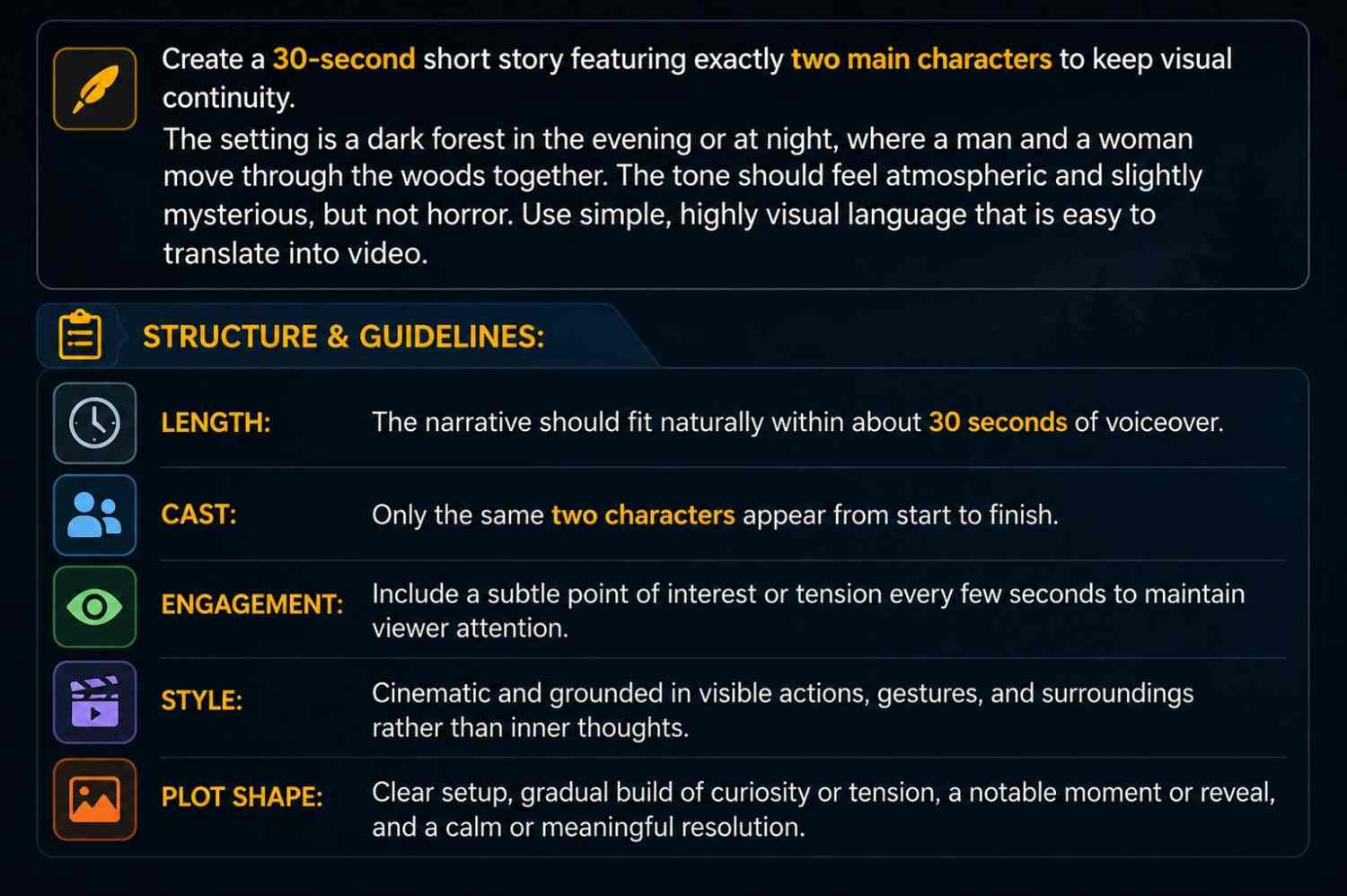
Create a 30-second short story featuring exactly two main characters to keep visual continuity. The setting is a dark forest in the evening or at night, where a man and a woman move through the woods together. The tone should feel atmospheric and slightly mysterious, but not horror. Use simple, highly visual language that is easy to translate into video.
Structure & Guidelines:
Length: The narrative should fit naturally within about 30 seconds of voiceover.
Cast: Only the same two characters appear from start to finish.
Engagement: Include a subtle point of interest or tension every few seconds to maintain viewer attention.
Style: Cinematic and grounded in visible actions, gestures, and surroundings rather than inner thoughts.
Plot Shape: Clear setup, gradual build of curiosity or tension, a notable moment or reveal, and a calm or meaningful resolution.
After first prompt in Grok – You have to put second in it, you will find 6 scene
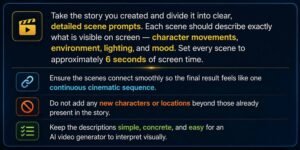
Take the story you created and divide it into clear, detailed scene prompts. Each scene should describe exactly what is visible on screen — character movements, environment, lighting, and mood. Set every scene to approximately 6 seconds of screen time. Ensure the scenes connect smoothly so the final result feels like one continuous cinematic sequence. Do not add any new characters or locations beyond those already present in the story. Keep the descriptions simple, concrete, and easy for an AI video generator to interpret visually.
—————————————————–
Or
Or
Read it carefully.
When you read the story properly, you can understand what Grok has planned for your video and whether the story is going in the direction you want.
If something is wrong, you can correct it before moving to the video-generation stage.
Ask Grok to Divide the Story Into Scenes
After the story is ready, you can tell Grok to divide the video into scenes.
For example, if you want a 30-second video, you can ask Grok to create 6 scenes, with each scene being approximately 5 seconds.
The structure would be:
Scene 1 — 5 seconds
Scene 2 — 5 seconds
Scene 3 — 5 seconds
Scene 4 — 5 seconds
Scene 5 — 5 seconds
Scene 6 — 5 seconds
That gives you:
6 × 5 = 30 seconds
The important thing is that Grok can explain what should happen in every scene and how each scene should connect with the next one.
Grok Can Tell You What Each Scene Should Look Like
This is one of the parts I find most useful.
Instead of having to decide everything yourself, you can ask Grok to explain the complete scene.
For example, it can tell you:
Scene 1: Where the character is, what the environment looks like and what the camera should show.
Scene 2: What happens next and how the action continues from Scene 1.
Scene 3: What the character does next and how the camera or environment changes.
And the same process continues until the final scene.
This gives you a complete roadmap for the video.
Create the Images for Your Scenes
After Grok has created the scenes, you can ask it to give you the image prompt for each scene.
The image prompt should describe the character, environment, action, camera angle and other important details.
Once you have the image, you can click on it and use it to create the video.
After clicking the image, the video can be generated within a few seconds.
So your workflow becomes:
Prompt → Story → Scenes → Image Prompts → Images → Video
Use Extend Video to Continue the Story
Now comes the important part for creating a longer video.
After you create your first video scene, click on the three dots.
You will find the Extend Video option.
Click on it.
At the bottom, you can add your next prompt.
Now give Grok the prompt for Scene 2.
After Scene 2 is created, continue with Scene 3, then Scene 4, and so on.
For a 30-second video, your workflow can look like this:
Scene 1 → Extend Video → Scene 2 → Extend Video → Scene 3 → Extend Video → Scene 4 → Extend Video → Scene 5 → Extend Video → Scene 6
In this way, all the prompts you prepared for your 30-second video can be used step by step.
My Personal Experience With Google Flow
Google Flow is also an interesting AI video tool, but according to my personal experience, creating longer videos with it requires a lot of effort.
The videos are created in short clips, such as 4 to 10 seconds, so you have to work with multiple clips when you want to create a longer story.
Another thing I noticed from my personal experience is the daily credit limit.
You can get around 50 credits per day, but depending on the generation, those credits can be used very quickly. In my experience, this can sometimes mean that you can only create around two usable videos.
If the result is not good on the first attempt, you have to try again, which means using more credits and spending more time.
Why Grok Can Be Useful for Long AI Videos
The main reason I find Grok useful is not simply because it can create a video.
It is the way it helps you plan the video.
You give Grok an idea.
Grok writes the story.
Then the story can be divided into scenes.
The scenes can be given specific durations.
Grok can explain how each scene should work and how it should connect with the next one.
It can also provide image prompts that you can use before generating the video.
Then you can use the Extend Video option to continue the story.
This makes the whole process much more organized.