
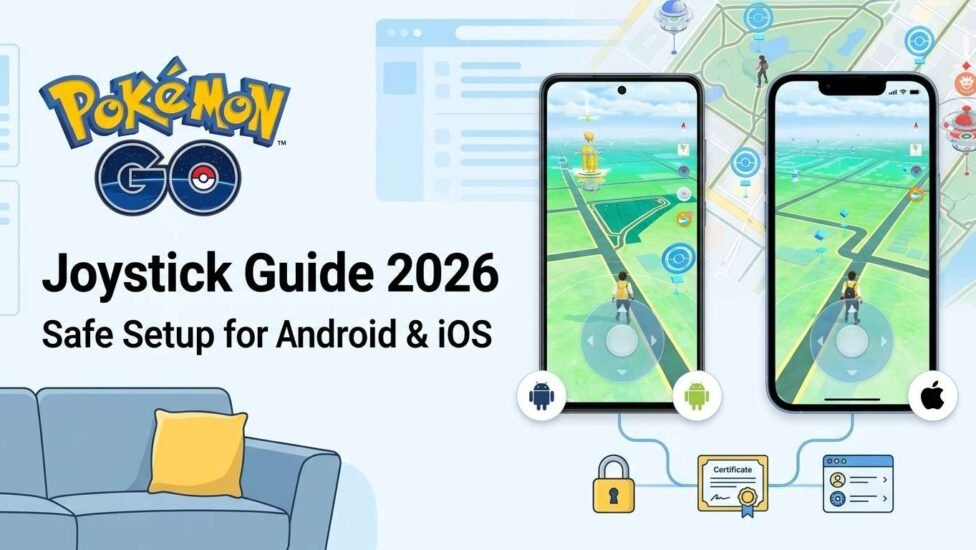
Playing location-based mobile titles usually requires continuous physical movement outdoors. However, utilizing a virtual joystick allows players to navigate the game map, visit Pokéstops, and participate in remote raids directly from their homes. This guide covers how to set up virtual location controls safely across different mobile operating systems in 2026 without unnecessary complications.
What is a Pokémon GO Joystick and How Does It Work?
A virtual location tool overlays an interactive directional pad on your screen. Instead of relying on your phone’s physical hardware sensors, the software sends simulated GPS coordinates directly to the operating system.
Understanding GPS Simulation and Virtual Movement When you interact with the directional pad, the application modifies your system’s current location data in real time. This tricks the device into believing you are walking through physical streets, making it possible to hatch eggs or encounter wild spawns without leaving your physical area.
Joystick Controls vs. Physical Walking: The Key Differences Physical walking relies entirely on cellular signals and hardware movement sensors. Virtual navigation relies on software-driven coordinate changes, allowing you to control speed, set static movement paths, or maintain a consistent heading at a fixed pace.
Top Joystick Tools for Android and iOS Users
Different mobile platforms require tailored tools to implement location simulation effectively.
Android Options: APK Downloads, PGSharp, and Root-Free Setups Android users often opt for modified application packages or dedicated location changers:
-
PGSharp: A popular modified application package that includes built-in directional controls directly on the interface, functioning without system modification.
-
Fly GPS & Fake GPS: Standalone applications that overlay coordinates over standard game client installs.
-
PokéMod: A specialized utility that offers deeper integration for rooted devices, providing enhanced gameplay features and smoother coordinate feeds.
iOS Solutions: iPoGo, Desktop Spoofing, and No-Jailbreak Methods Apple devices enforce stricter system security, making location modification distinct on iOS:
-
iPoGo: Available as an installation package for iOS, delivering full directional overlay controls.
-
Desktop Tethering Tools: Programs running on a computer (such as AnyTo or iWearToGo) alter the connected iPhone’s system coordinates via USB without requiring system jailbreak procedures.
Comparing Popular Third-Party Apps (iAnyGo, Fake GPS, PokéMod)
| Tool / Software | Operating System | Needs Root / Jailbreak? | Primary Setup Method |
|---|---|---|---|
| PGSharp | Android | No | Direct APK download and install |
| iPoGo | iOS / Android | No | Custom installation profile |
| AnyTo | Windows / macOS | No | USB connection to mobile device |
| Fake GPS Joystick | Android | Optional | System mock location setting |
| Pokemod | Android | Yes | Module framework integration |
Step-by-Step Setup Guide: How to Get a Joystick Without Moving
Setting up virtual movement requires precise configuration to ensure smooth gameplay.
Configuring Virtual Location Tools on Android
-
Download your preferred simulation tool or modified application package.
-
Open Settings > Developer Options on your Android device.
-
Locate Select mock location app and choose your installed tool.
-
Launch the application, grant necessary draw-over-apps permissions, and enable the directional control pad.
Setting Up Joystick Movement on iOS Devices
-
Connect your iOS device to a computer using an original USB cable.
-
Open your desktop virtual location changer (such as AnyTo or similar tools).
-
Select Joystick Mode on the desktop interface.
-
Confirm the connection on your phone screen to start directing your in-game avatar.
Enabling Auto-Walk and Route Simulation Features Most modern tools feature automated pathing. You can drop multiple pins on the map to create a custom loop. The software then generates natural movement along existing roads at realistic walking speeds, which helps log distances for egg hatching.
Important Safety Rules: Preventing Soft Bans and Account Penalties
Game servers constantly monitor for abnormal player movement, such as traveling extreme distances instantly. Following strict cooldown rules protects your account status.
The Cooldown Chart: How Teleportation and Location Changing Work Whenever you perform an in-game action (like catching a Pokémon or spinning a Pokéstop), your location gets registered. If you change coordinates to a distant city immediately after, the game triggers a temporary soft ban. Always observe the standard cooldown duration before interacting with the map after long jumps:
-
1 to 5 km: Wait 1–2 minutes
-
10 to 20 km: Wait 10–15 minutes
-
50 to 100 km: Wait 30–45 minutes
-
500 to 1000 km: Wait 60–90 minutes
-
1500+ km: Wait a full 120 minutes (2 hours)
Best Practices for Safe In-Game Spoofing and Catching
-
Set your virtual walking speed between 9 km/h and 10.5 km/h to match realistic human movement.
-
Do not jump between different continents within short timeframes.
-
Always let your current cooldown timer elapse fully before throwing a Pokéball or dropping a berry.
What to Do If You Encounter Location Teleportation Errors If your avatar rapidly bounces between your real physical location and your simulated coordinates, check your device’s location accuracy settings. Setting GPS accuracy to “Device Only” or disabling Wi-Fi scanning prevents the device from overriding the software’s virtual coordinates.
Frequently Asked Questions (FAQs)
Can You Use a Joystick in Pokémon GO Without Rooting or Jailbreaking? Yes. Modern solutions allow users to run modified clients or tether their devices to desktop software without modifying core system security or voiding device warranties.
What Is the Safest Distance to Teleport Using a Virtual Location Tool? Staying within your local city or neighborhood is always safer than cross-border jumping. Short-distance movements closely mimic authentic gameplay and lower the chances of server-side flags.