
Accidentally deleting a cherished photo, a carefully edited video, or a high-performing Reel can feel like a total disaster. Instagram content creators and casual users alike invest substantial effort into preparing visuals, writing captions, and picking audio tracks. When that content vanishes from your profile, the immediate reaction is panic. However, removing a post or video from your main grid does not automatically mean it is wiped from digital existence forever.
In this step-by-step guide, we will break down the exact recovery mechanisms built into Meta’s ecosystem, local smartphone storage fallbacks, and data request procedures to help you restore your missing Instagram posts and Reels.
Reality Check: Is Permanent Instagram Data Truly Gone?
Before diving into recovery steps, it is essential to clarify what Instagram actually does when you tap the “Delete” button.
Understanding Instagram’s 30-Day Server Data Retention
When you delete a post, Story, IGTV clip, or Reel, Instagram moves it into a hidden temporary partition rather than performing an immediate server overwrite. According to Meta’s data retention policies, deleted media remains fully recoverable for 30 days (or 24 hours for unarchived Stories). During this retention window, the item is completely hidden from public view, but your user account maintains administrative control over it.
The Technical Difference Between Soft Delete and Hard Purge
A soft delete occurs when media is marked as inactive on your public feed but stored safely in your account’s temporary backup partition. A hard purge happens once the 30-day window expires or when you manually purge the item from your “Recently Deleted” folder. Even after a hard purge, underlying file metadata and cached assets may temporarily remain inside cached device storage or downloadable account archives.
Method 1: Using Instagram’s Native “Recently Deleted” Vault
The fastest and most reliable way to recover your content is through Instagram’s built-in recovery system.
Navigating Your Account Activity Center
To inspect your account’s temporary storage, follow these steps inside the mobile app:
-
Open Instagram and tap your profile icon in the bottom right corner.
-
Tap the three horizontal lines (menu) in the top right corner.
-
Select Your Activity.
-
Scroll down and select Recently Deleted.
Step-by-Step Authentication and Content Restoration
Inside the Recently Deleted folder, you will see categorized tabs for Posts, Reels, and Stories along with a day counter showing how many days remain before permanent purging.
Select the post or Reel you want back, tap the three dots on the top right of the post preview, and choose Restore. To prevent unauthorized account access or malicious deletions, Instagram will prompt you to verify your identity via a one-time security code sent to your registered phone number or email address before restoring the content directly back to your profile grid.
Method 2: Retrieving Content via Meta Data Download Request
If media has disappeared from your Recently Deleted folder due to a glitch or manual clear, you can request your full raw account file directly from Meta.
Requesting Your Raw Information Archive from Instagram
Meta maintains records of account activities, media files, and message history. To request your personal copy:
-
Go to your Instagram Settings & Privacy.
-
Tap Accounts Center and navigate to Your Information and Permissions.
-
Select Download Your Information.
-
Choose Download or Transfer Information, select your Instagram profile, and pick Specific Types of Information (or a full copy).
-
Ensure you select Media and set the date range to encompass when the deleted post was created.
Extracting Media Files from Compressed JSON/HTML Folders
Meta will process your request and send a download link to your email address. Downloading this file yields a compressed ZIP package. Unzip the file on a computer or smartphone file manager, then navigate to the content/ or media/ folder. Here, you can find original uploaded video clips, images, and draft assets stored on Meta servers prior to deletion. To better understand how Meta structures account archives and profile data permissions, check the official Meta Accounts Center Help Center for comprehensive instructions on managing cross-platform account credentials.
Method 3: Recovering Media from Local Device Backups
When you create or publish content, your smartphone creates secondary local cache files that remain untouched even if you delete the item inside Instagram.
Accessing Auto-Saved Reels in iOS Photos & Android Gallery
By default, Instagram often saves original photos and rendered video clips directly to your phone’s camera roll during the publishing step.
-
iOS Users: Check your Photos app and open the Recently Deleted album under Utilities. Photos and videos deleted locally stay there for up to 30 days.
-
Android Users: Open Google Photos or your native Gallery app, tap Trash / Bin, and verify if the raw video file or edited photo resides inside.
Utilizing Cloud Synchronizations (Google Photos & iCloud)
If you use cloud backup services, your phone may have auto-uploaded the original raw video or edited draft before you uploaded it to Instagram. Search your Google Photos, iCloud Drive, or OneDrive account using keywords like “Instagram”, “Reels”, or filtering by the date the video was originally shot.
Critical Precautions: Protecting Your Content Against Future Loss
Preventing future data loss takes only a few seconds to configure inside your account settings.
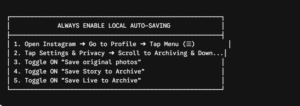
Enabling Automatic Draft and Upload Saving Settings
Ensure that Instagram always saves high-resolution versions of your final edits to your phone’s storage. Turning on “Save Original Photos” and keeping “Save Story to Archive” enabled guarantees that an off-platform record always exists. Furthermore, if you are actively editing complex video timelines, consider keeping a master backup on an external hard drive or cloud workspace. For advanced media organization and storage solutions, exploring the Dropbox Cloud Storage Features page provides excellent workflow tips for maintaining secure secondary media archives.
Steering Clear of Fake Third-Party Recovery Apps and Scams
Be extremely cautious of third-party websites, apps, or Instagram accounts claiming they can “hack” or “force restore” permanently purged Instagram posts for a fee. Instagram’s server architecture does not allow external tools to inject or bypass server-side data deletion. Granting your login credentials to third-party tools will compromise your account security, leading to account hijacking or permanent bans.
Conclusion
Losing an Instagram post or Reel can be frustrating, but native features make recovery straightforward if caught within 30 days. Start by checking your Recently Deleted folder inside the app’s activity center. If the media is absent, request a Meta Data Download or inspect your local phone gallery and cloud storage trash bins. By turning on original media saving options today, you can safeguard your creative content against accidental deletion in the future.
Related post: How to Find Clients on Instagram Using Hashtags