
Why Is a Professional Gmail Signature Important for Client Outreach?
When you send an email to a potential client, they often look at your email signature to understand who you are and what you do. A professional signature creates a strong first impression and makes your email look more trustworthy and organized.
What Does a Client Think After Seeing a Good Signature?
A professional signature can make the client think:
“This person looks professional and knows what they are doing.”
“Their business information is clearly available.”
“I can easily visit their website or contact them if I’m interested.”
This helps build trust, credibility, and professionalism
before the client even responds to your offer.
Why Should You Use It?
A Gmail signature saves you from typing your professional information in every email and ensures that every outreach email represents your brand consistently.
How to Create a Professional Gmail Signature That Impresses Clients
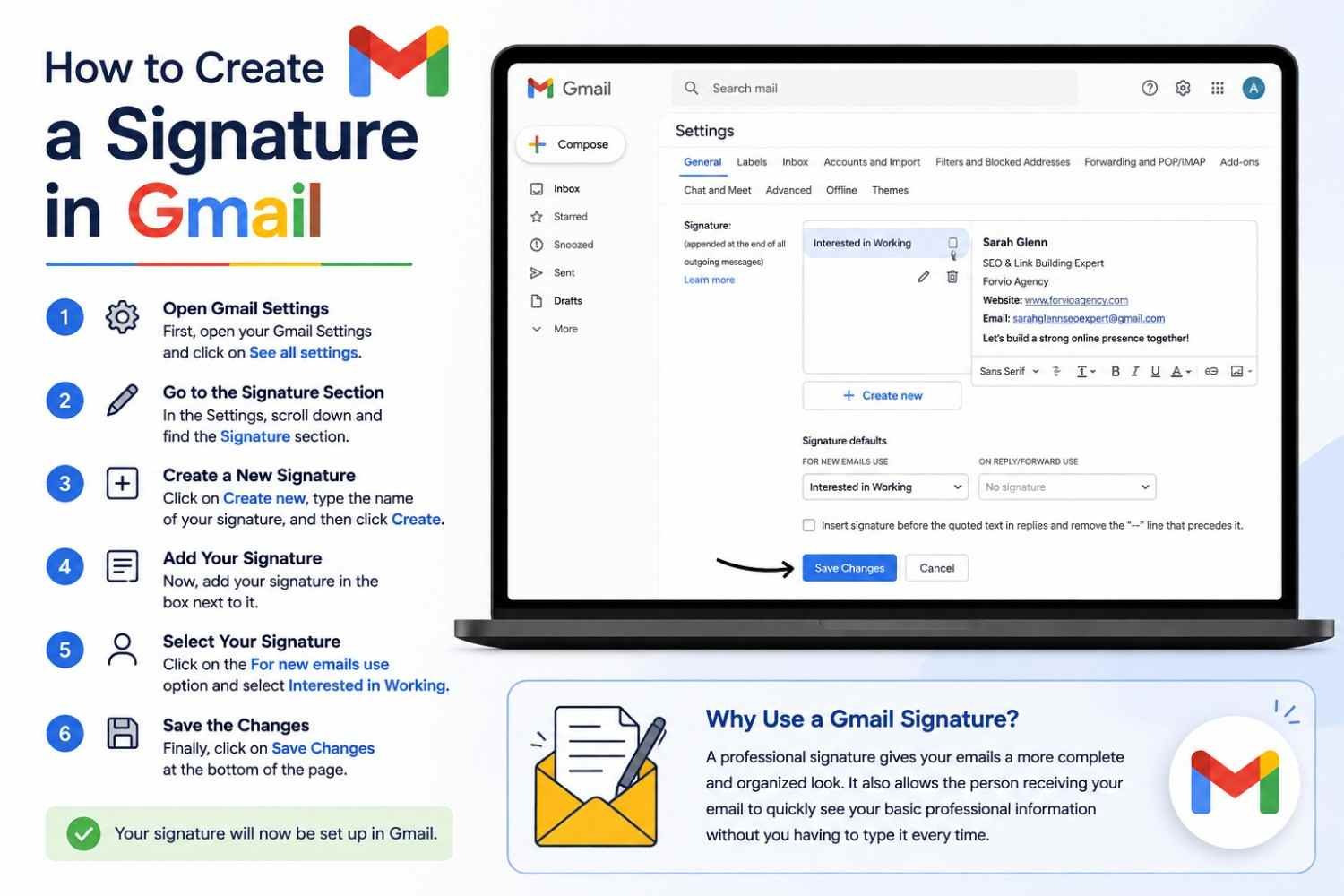
Open Gmail Settings
First, open your Gmail Settings and click on See all settings.
Go to the Signature Section
In the Settings, scroll down and find the Signature section.
Create a New Signature
Click on Create new, type the name of your signature, and then click Create.
Add Your Signature Detail
Now, add your signature in the box next to it.
Full Name:
Website:
Social media links:
Best Regard
Save the Changes
Finally, click on Save Changes at the bottom of the page.
Your signature will now be set up in Gmail.
| Name: | Muhammad Amjad Butt |
| Experience: | 21+ Years of Link Building Experience |
| Expertise: | Link Building | AI | Social Media |
| Website: | pboutreach.com |
| YouTube: | Pak SEO Training |
| Email: | muhammadamjadbutt00@gmail.com |
Professional Email + Valuable Offer + Professional Signature
= Stronger First Impression
A signature cannot guarantee a reply, but it can make your outreach email look more credible, professional, and trustworthy, which can increase the chances of getting the client’s attention.
Autres questions
1. Where can I find Gmail signature settings?
You can find the signature settings inside Gmail under Settings > See all settings.
2. Can I change my Gmail signature later?
Yes, you can return to the Signature section anytime and edit your existing signature.
3. Can I create more than one Gmail signature?
Yes, Gmail allows you to create different signatures for different types of emails.
4. What information can I put in my signature?
You can add your name, company details, job title, website, or other information you want to show.
5. Will my signature appear automatically in every new email?
Yes, if you select your signature under For new emails use, Gmail will add it automatically.