
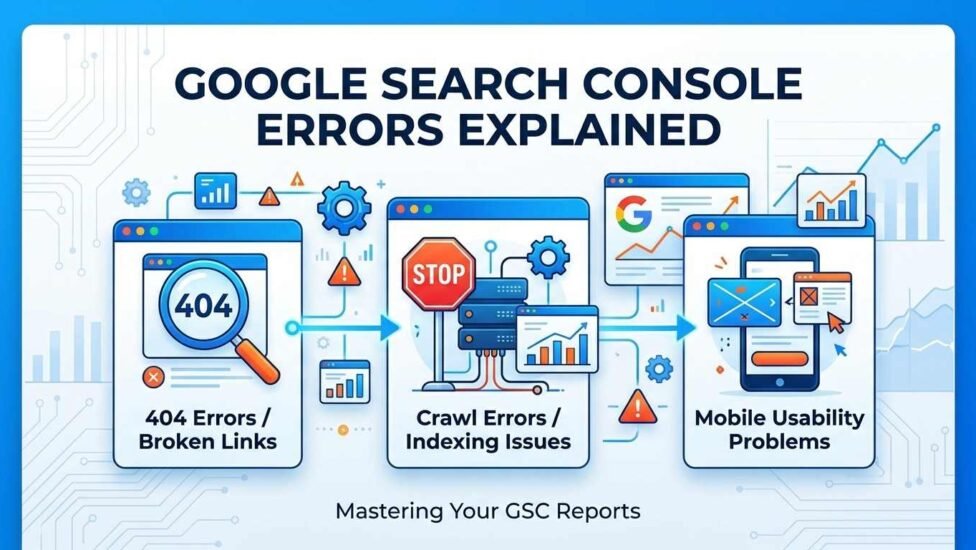
Quick Answer: Google Search Console errors are messages showing why Google could not crawl, index or show some of your pages. They are not penalties. To fix them, open Indexing > Pages, check the section titled “Why pages aren’t indexed”, inspect each affected URL, and fix the cause. The usual causes are a server problem (5xx), a broken page (404), an accidental noindex tag, a robots.txt block, a bad redirect or thin content. After fixing, click Validate Fix. Google usually confirms within a few days to two weeks.
Key Points at a Glance
- Where to find them: Search Console > Indexing > Pages > “Why pages aren’t indexed”.
- Fix first: Server error (5xx), 404 on important pages, accidental noindex, robots.txt blocks and redirect errors.
- Often safe to ignore: Page with redirect, alternate page with proper canonical tag, and 403 on admin pages.
- Content problems: “Crawled – currently not indexed” usually means thin or weak content, not a technical fault.
- Last step: Use the URL Inspection tool and Validate Fix so Google checks your pages again.
What Are Google Search Console Errors?
Google Search Console (GSC) is a free Google tool that shows how Google sees your website. When Googlebot visits your pages, it tries three things: crawl the page, index it, and then rank it. When something blocks one of these steps, Search Console reports it as an issue.
Most people panic when they get an email from Google about “new indexing issues”. You should not. Many of these statuses are information, not real errors. Some pages, like your login page, cart page or tag archives, should not be in Google at all. The real skill is knowing which Google Search Console errors are hurting your traffic and which ones you can safely leave alone.
How to Find Indexing Errors in Search Console
- Log in to Google Search Console and select your website property.
- In the left menu, click Indexing > Pages.
- Scroll down to “Why pages aren’t indexed”.
- Click any reason to see the list of affected URLs.
- Click a URL, then Inspect URL to see full details and test the live page.
Also check the Core Web Vitals, HTTPS and Sitemaps reports, because they can show other problems that affect your rankings.
Fix It or Ignore It? Quick Priority Table
| Error | What It Means | Priority |
|---|---|---|
| Server error (5xx) | Your server failed to respond | High – fix now |
| Redirect error | Redirect loop, long chain or broken target | High – fix now |
| URL marked noindex | Page tells Google not to index it | High if the page is important |
| Blocked by robots.txt | robots.txt stops Googlebot | High if the page is important |
| Not found (404) | Page no longer exists | Medium – fix important URLs |
| Soft 404 | Empty page returns a 200 code | Medium |
| Crawled – currently not indexed | Google crawled but chose not to index | Medium – improve content |
| Discovered – currently not indexed | Google knows the URL but has not crawled it | Medium – improve links |
| Duplicate canonical issues | Google found similar pages | Low to medium |
| Page with redirect / Alternate canonical | Redirect or canonical is working | Usually ignore |
Common Google Search Console Errors and How to Fix Them
1. Server Error (5xx)
A 5xx error means your server could not answer when Googlebot visited. A 500 is an internal server error, often caused by a broken plugin or bad PHP code. A 502 is a bad gateway error, and a 503 means the server was busy or down for maintenance. If the server error 5xx in Search Console keeps coming back, Google may start crawling your site less often.
How to fix it:
- Open the URL yourself and check if it loads.
- Check your hosting error logs for crashes or resource limits.
- Deactivate recently added WordPress plugins one by one to find the faulty one.
- Upgrade your hosting plan if traffic or crawling is overloading the server.
- Use URL Inspection and click “Test Live URL” to confirm the page now works.
2. Redirect Error
Googlebot reports a redirect error when a redirect goes in a loop (A to B and back to A), passes through too many steps, or ends at a broken page. Google stops following after a few hops, so the final page never gets indexed.
How to fix it:
- Use a crawler such as Screaming Frog to see the full redirect path.
- Point every old URL directly to the final page with a single 301 redirect.
- Remove redirect loops in your redirection plugin or .htaccess file.
- Make sure the final URL returns a 200 status code.
3. URL Blocked by robots.txt
This means your robots.txt file contains a “Disallow” rule that stops Google from crawling the page. It often happens after a site migration when a staging rule is left behind.
How to fix it:
- Open
yourdomain.com/robots.txtin your browser. - Find the Disallow rule that matches the URL or its folder.
- In WordPress, edit robots.txt through Rank Math (General Settings > Edit robots.txt) or Yoast (Tools > File editor).
- Remove the rule, save, and request indexing again.
4. URL Marked “noindex” (Excluded by noindex Tag)
A noindex tag tells Google not to show a page in search results. That is fine for cart, checkout and thank-you pages. It becomes a problem when it is added to an important post by mistake.
How to fix it:
- View the page source and search for
noindex. - In WordPress, go to Settings > Reading and make sure “Discourage search engines” is unticked.
- Open the post in Rank Math or Yoast and set robots meta to “Index”.
- Check HTTP headers for an
X-Robots-Tag: noindexrule. - Remove the tag and click “Request Indexing”.
5. Soft 404 Error
A soft 404 error in Google Search Console means a page looks empty or “not found” to Google but still returns a 200 OK status. Empty tag pages, empty categories and out-of-stock product pages are common triggers.
How to fix it:
- If the page should exist, add real, useful content to it.
- If it should not exist, return a proper 404 or 410 code.
- Redirect it to the most closely related live page.
- Set empty tag and category archives to noindex.
6. Not Found (404)
A 404 means the page does not exist. Deleted posts, changed slugs and typing mistakes in links are the usual causes. Old 404s for pages you removed on purpose are normal. The ones you should fix are important pages that still get links or traffic.
How to fix it:
- Restore the page if you deleted it by mistake.
- Add a 301 redirect to the most relevant live page.
- Fix internal links that still point to the dead URL.
- Remove the old URL from your XML sitemap.
7. Blocked Due to Unauthorized Request (401) and Access Forbidden (403)
These mean Googlebot was denied access. A 401 usually comes from a login wall or a firewall. A 403 is normal for wp-admin and password-protected pages, but it is a problem when it hits public posts.
How to fix it:
- Check your security plugin or Cloudflare settings and allow Googlebot.
- Look for faulty rules in your .htaccess file.
- Make sure your domain’s A record points to the correct server IP.
- Ignore 403 errors on admin or private pages, or mark those pages noindex.
8. Crawled – Currently Not Indexed
Google visited the page but decided not to add it to its index. This is a quality signal, not a technical bug. Google feels the page does not add enough value yet. For a proper crawled currently not indexed fix, you need to make the page better, not just resubmit it.
How to fix it:
- Add depth: answer the question fully, add examples, steps and original insights.
- Match search intent. Check what the top results show and cover it better.
- Add internal links from your strong, related posts.
- Merge several thin posts on the same topic into one strong guide.
- Update the page, then request indexing. Pagination and feed URLs here can be ignored.
9. Discovered – Currently Not Indexed
Discovered currently not indexed means Google knows the URL exists but has not crawled it yet. It is common on new websites, large sites and sites with slow servers or a weak structure.
How to fix it:
- Link to the page from your homepage, category pages or popular posts.
- Make sure the URL is in your XML sitemap and the sitemap is submitted.
- Improve server response time so Google can crawl more pages.
- Reduce low-value URLs (tags, filters, parameters) that waste crawl budget.
10. Duplicate Without User-Selected Canonical
Google found two or more very similar pages and you did not say which one is the main version, so Google picked one. The duplicate without user-selected canonical status is common with URL parameters, print pages and www versus non-www versions.
How to fix it:
- Add a self-referencing canonical tag to each main page (Rank Math and Yoast do this automatically).
- Point duplicate versions to the preferred URL with a canonical tag.
- Use one version of your site everywhere: HTTPS, with or without www, with or without a trailing slash.
11. Duplicate, Google Chose Different Canonical Than User
You set a canonical URL, but Google ignored it and picked another page. This usually happens when the two pages are almost the same, or when your internal links point to a different version than your canonical tag.
How to fix it:
- Use URL Inspection to see which canonical Google selected.
- Make the content of each page clearly different, or merge them.
- Point internal links and your sitemap only to your chosen URL.
12. Indexed, Though Blocked by robots.txt
Google indexed the page from links elsewhere, even though robots.txt blocks crawling. The page shows in results without a proper description.
How to fix it: If you want the page indexed, remove the robots.txt block. If you do not, allow crawling and add a noindex tag, because Google cannot see a noindex tag on a page it is not allowed to crawl.
13. Core Web Vitals Issues
These flag pages with slow loading (LCP), slow response to clicks (INP) or layout shifts (CLS). They do not stop indexing, but they hurt user experience and can affect rankings.
How to fix it:
- Compress images and use WebP. This guide on zero-loss image compression in WordPress shows how to shrink heavy images without losing quality.
- Use a caching plugin and a CDN.
- Remove unused scripts and heavy third-party widgets.
- Set width and height on images and ads to stop layout shifts.
Errors You Can Usually Ignore
- Page with redirect: The old URL redirects correctly. Nothing to fix.
- Alternate page with proper canonical tag: Your canonical is working as intended.
- Excluded by noindex on cart, checkout, login and thank-you pages.
- 403 errors on wp-admin and private pages.
- Old 404s for pages you removed on purpose with no links pointing to them.
7-Step Workflow to Fix Any Search Console Error
- Read the reason: Open the issue and note the exact error name.
- Check the URLs: Decide whether each affected page should actually be indexed.
- Inspect one URL: Use URL Inspection to see crawl date, canonical and status.
- Test the live URL: Confirm whether the problem still exists right now.
- Find the root cause: Server, plugin setting, robots.txt, redirect or content quality.
- Apply the fix: Change only what the error points to.
- Validate: Request indexing for single pages or click Validate Fix for the whole issue.
How to Validate Fix in Google Search Console
After fixing an issue, open it in the Pages report and click Validate Fix. Google will re-crawl the affected URLs and mark the validation as Started, then Passed or Failed. This usually takes a few days to two weeks, depending on the size of your site. You will get an email when it finishes. For a single page, use URL Inspection > Request Indexing instead. Do not request indexing for the same URL again and again, because it does not make Google faster.
How to Prevent Google Search Console Indexing Issues
- Check Search Console once a week so problems do not pile up.
- Keep your XML sitemap clean, with only indexable pages that return a 200 code.
- Add a 301 redirect every time you change a slug or delete a post.
- Build strong internal links so no important page is left orphaned.
- Publish fewer, better posts instead of many thin ones.
- Run a full site audit every month. The SEO Executive Guide explains how professionals plan regular audits and reporting.
- Watch your hosting uptime and speed, especially after traffic spikes.
Conclusion
Google Search Console errors look scary, but most of them are simple to fix once you know what they mean. Start with the errors that block indexing: server errors, noindex tags, robots.txt blocks and redirect problems. Then improve content for pages stuck in “crawled” or “discovered” status, and clean up duplicates and soft 404s. Validate each fix and keep checking your reports every week. Once your pages are indexed, focus on bringing more visitors to them, for example with a smart Pinterest keyword strategy for steady blog traffic.
Frequently Asked Questions
What are Google Search Console errors?
They are issues reported by Google that stop it from crawling, indexing or properly showing your pages. Common examples are server errors, 404 pages, redirect errors, noindex tags and robots.txt blocks.
Do Google Search Console errors mean my site is penalized?
No. These are technical and quality signals, not penalties. Manual penalties appear separately under Security & Manual Actions.
How do I fix “Crawled – currently not indexed”?
Improve the page’s content and search intent match, add internal links from related posts, merge thin duplicate posts, and then request indexing.
How long does Validate Fix take?
Usually from a few days up to two weeks. Larger websites can take longer because Google needs to re-crawl every affected URL.
Should I fix every error in Search Console?
No. Fix errors on pages you want in Google. Redirected URLs, canonical alternates and noindexed private pages are normal and can be ignored.
Why do new pages show “Discovered – currently not indexed”?
Google knows about the URL but has not crawled it yet. Add internal links, include it in your sitemap and keep your server fast, and Google will usually crawl it soon.