
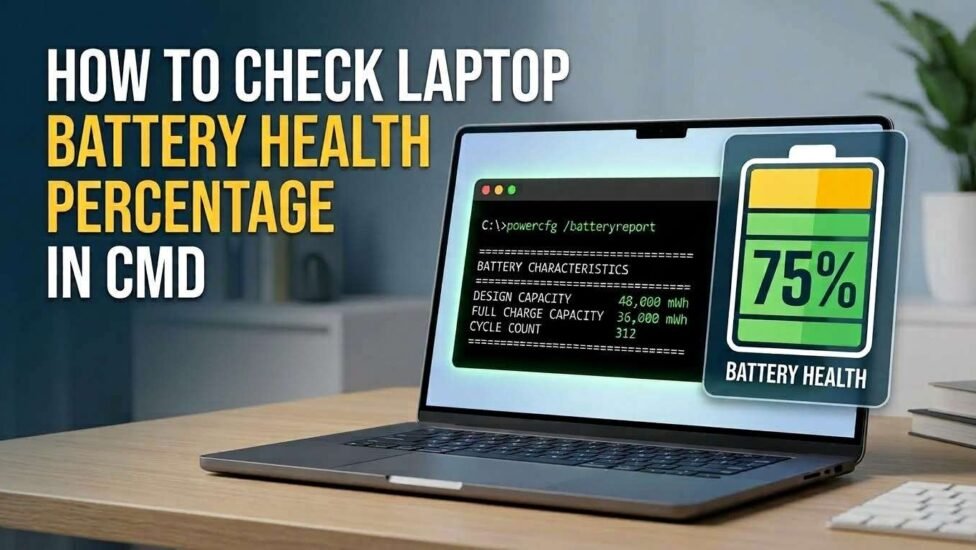
Every laptop owner eventually experiences the same frustration: your device claims to be at 100% charge, yet the battery drains completely within an hour. The percentage icon resting in your Windows system tray only shows your current state of charge, not your battery’s overall physical health or degradation over time.
If you want to know whether your battery is operating at peak efficiency or slowly dying, Windows conceals a powerful built-in diagnostic tool accessible through Command Prompt. In this guide, you will learn how to extract a detailed hardware audit, interpret critical wear metrics, and calculate your exact remaining battery health percentage without installing third-party utilities.
The Hidden Diagnostic: Why Standard Battery Icons Lie About Capacity
The standard battery indicator in your taskbar is designed for quick reference, telling you how much energy remains relative to the battery’s current max charge. However, lithium-ion cells naturally degrade through charging cycles, chemical aging, and heat exposure. Over time, your battery’s actual maximum holding capacity shrinks significantly compared to when it left the factory.
Relying solely on the taskbar icon can hide severe capacity loss. A system showing “100% charged” might only be holding 50% of the energy it was originally designed to store. To understand the underlying factors behind battery degradation and performance optimization, reviewing Intel’s guide to optimizing laptop battery life provides helpful hardware insights.
Designed Capacity vs. Full Charge Capacity Explained
To accurately evaluate hardware degradation, you must understand two core terms reported by Windows diagnostics:
-
Design Capacity: The total amount of energy (measured in milliwatt-hours, or mWh) the battery was built to store when brand new.
-
Full Charge Capacity: The maximum amount of energy the battery can currently hold after accounting for chemical degradation and usage wear.
Step-by-Step: Extracting Your Laptop’s Hidden Battery Report in Seconds
Generating a complete hardware diagnostic report requires running a simple, built-in utility named powercfg. Follow these steps to generate your file:
1. Launching Command Prompt with Administrative Power
-
Press the Windows Key on your keyboard.
-
Type
cmdor Command Prompt into the search bar. -
Right-click on Command Prompt from the search results and select Run as administrator (this ensures Windows has full access permission to write the diagnostic file).
2. Running the Secret powercfg Command
In the Command Prompt window, type or paste the following command and press Enter:
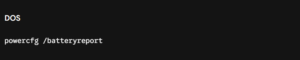
Command Prompt will analyze your hardware power state and generate an HTML document. The output will display a direct file path indicating where the report was saved—typically:
C:\Windows\System32\battery-report.html or C:\Users\YourUsername\battery-report.html
3. Opening the Generated HTML Report
-
Open File Explorer and navigate to the folder path shown in Command Prompt.
-
Double-click battery-report.html to open it in your default web browser (Chrome, Edge, or Firefox).
Decoding the Results: How to Calculate Your Actual Health Percentage
Once the report opens in your browser, scroll down to the Installed batteries section. You will see a breakdown containing values for DESIGN CAPACITY and FULL CHARGE CAPACITY.
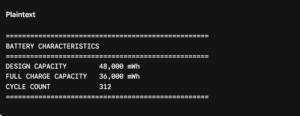
The Simple Math Formula for Real Battery Wear
To calculate your exact battery health percentage, use this straightforward mathematical equation:

-
Design Capacity: 48,000 mWh
-
Full Charge Capacity: 36,000 mWh

In this example, the laptop battery retains 75% of its original factory capacity, representing a 25% wear degree.
Red Flags: When to Consider a Replacement
-
80% to 100% Health: Excellent condition. The battery retains strong performance.
-
50% to 79% Health: Moderate degradation. You will notice shortened unplugged usage time.
-
Below 50% Health: Significant degradation. The laptop may suffer unexpected shutdowns during intensive tasks.
-
Missing Full Charge Capacity / 0 mWh: Indicates permanent cell failure or a malfunctioning battery management system.
If your report indicates high degradation, applying PCMag’s recommended Windows power settings can help reduce unnecessary hardware strain.
Proactive Battery Care: Actions to Take After Reading Your Report
If your Command Prompt diagnostic reveals moderate to heavy wear, you can slow further degradation by implementing smart battery management practices:
-
Avoid Constant 100% Charge States: Keeping a laptop plugged into wall power perpetually stresses lithium-ion cells. Enable battery charging limits (e.g., capping charge at 80%) using your manufacturer’s companion utility (Dell Power Manager, Lenovo Vantage, ASUS Battery Health Charging, etc.).
-
Control Operating Temperatures: Extreme heat accelerates chemical breakdown faster than active discharge cycles. Always operate your laptop on hard surfaces that allow adequate ventilation under the chassis.
-
Adjust Energy Saver Settings: Enable power efficiency modes within your OS power settings to reduce unnecessary CPU power spikes while working on battery power.
Conclusion
Understanding your laptop’s actual power performance requires looking beyond basic desktop indicators. By taking advantage of the built-in Command Prompt powercfg /batteryreport tool, you can retrieve exact hardware metrics, monitor chemical degradation over time, and accurately determine your true battery health percentage. Regularly checking your battery report allows you to take preventative measures before total hardware failure occurs, ensuring your portable computer remains reliable whenever you step away from an electrical outlet.
Related post: Uploadwords .com USA Tech: Modern Digital Content Guide