
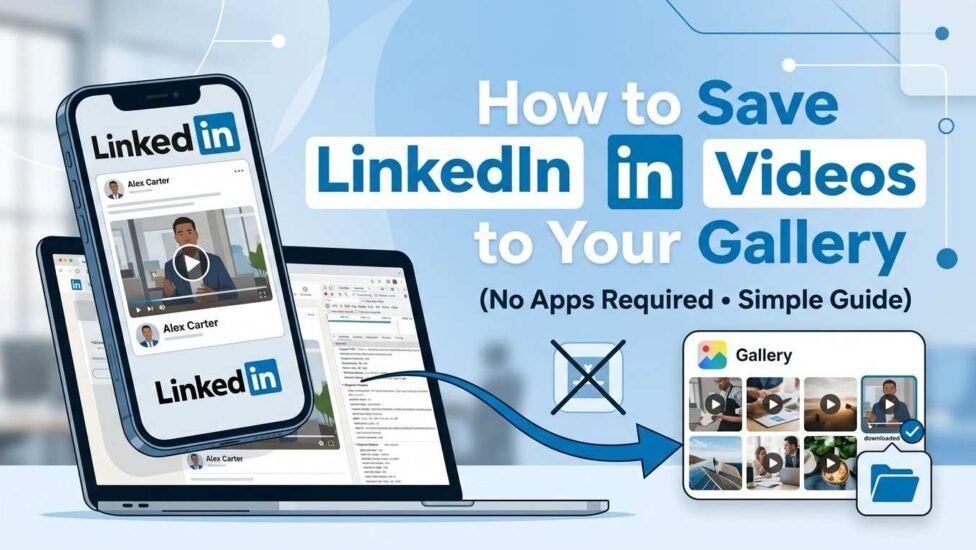
LinkedIn has evolved into a leading global platform for sharing professional knowledge, industry trends, and insightful video breakdowns. However, unlike video-centric platforms like YouTube or Facebook, LinkedIn does not feature an official “Download” button for video posts.
To bypass this limitation, many users fall back on unverified third-party software, questionable browser add-ons, or ad-heavy mobile applications. Unfortunately, using these tools often exposes your personal devices to malware, intrusive pop-ups, and data privacy vulnerabilities.
The good news is that you don’t need to install any external apps. By leveraging native web browser options and standard smartphone features, you can safely extract HD MP4 videos directly to your camera roll or local storage.
Why You Should Avoid Third-Party Video Downloaders
Before exploring the step-by-step methods, it is crucial to recognize the risks associated with third-party downloading tools:
-
Data Privacy Risks: Free downloading tools frequently request extensive device permissions, potentially accessing your contacts, file storage, and browsing history.
-
Malware and Invasive Ads: Unauthorized apps and browser extensions often carry background tracking scripts, adware, or malware.
-
Account Compromise: Any downloader requiring your LinkedIn account credentials poses a severe security risk to your login information.
By sticking to native browser options, you safeguard your personal data while securing high-quality MP4 video files.
Method 1: Download via Desktop Browser (Inspect Tool)
If you are browsing on a desktop or laptop using Chrome, Firefox, or Microsoft Edge, you can easily pull the source media file using built-in developer options.
Step-by-Step Instructions:
-
Find the Video: Open LinkedIn on your desktop browser and locate the video post you wish to save.
-
Launch Developer Tools: Right-click anywhere on the page and click Inspect (or press
Ctrl + Shift + Ion Windows /Cmd + Option + Ion Mac). -
Navigate to Network Tab: In the developer panel, click on the Network tab at the top menu.
-
Filter by Media: Select the Media sub-tab (or type
.mp4in the search/filter bar). -
Play the Video: Click play on the LinkedIn video post. The network activity list will display media URL requests.
-
Open in New Tab: Right-click the primary video link (typically the largest
.mp4request) and choose Open in new tab. -
Save to Storage: Right-click the video playing in the new tab and select Save Video As… to store the file in your preferred folder.
Technical Reference: To learn more about how browsers process web media, explore the MDN Web Docs Media Overview.
Method 2: Download Directly on Mobile (iOS & Android)
You don’t need a computer to avoid external downloader apps. Mobile web browsers on both iPhone and Android allow direct file saving.
For iPhone (iOS – Safari Method):
-
Open the LinkedIn app, locate the video, tap the three dots (…), and select Copy link to post.
-
Launch Safari, paste the link into the URL bar, and press Go.
-
Tap the Share icon in Safari and choose Save to Files.
-
Open the Files App, locate your clip, tap the share menu, and select Save Video to transfer it to your Photos/Camera Roll.
For Android (Chrome Method):
-
Copy the video post link from your LinkedIn app.
-
Launch Google Chrome and paste the link into the address bar.
-
Play the video, then long-press directly on the video player.
-
Select Download Video from the menu options. The
.mp4clip will save straight to your device gallery or Google Photos.
Mobile Usage Guide: Learn more about managing downloads on Apple devices via the Apple Support Download Guide.
Method 3: Use Screen Recording for Quick Captures
If you are dealing with restricted posts inside private groups or need a quick solution, native screen recording is a reliable alternative.
-
Activate Screen Recorder: Turn on the native Screen Recorder from your iOS Control Center or Android Quick Settings panel.
-
Expand Video: Open the video on LinkedIn, expand it to full screen, and ensure your audio volume is turned up.
-
Record and Stop: Start recording, play the clip through, and stop the recording once finished.
-
Trim in Gallery: Open your phone’s gallery app and trim away any unnecessary edges or control menus.
Troubleshooting Common Download Issues
-
Audio Desync or Missing Sound: LinkedIn occasionally separates audio and video streams under weak network conditions. Let the post load completely before grabbing the link.
-
403 Access Denied Error: This occurs when trying to fetch media from restricted network accounts or private groups. Ensure you are signed into your LinkedIn account in the same browser window.
-
Embedded Videos: If the LinkedIn post contains an embedded video from YouTube or Vimeo, native browser link extraction will not work. You must follow that specific platform’s native saving rules instead.
Conclusion
Saving valuable LinkedIn content directly to your gallery does not require risking your digital security with unverified third-party tools. By utilizing standard desktop developer tools or native mobile browser workflows, you can easily save crisp, high-definition videos directly to your device while keeping your system safe.
Related post: Pinterest Keyword Strategy for Steady Blog Traffic