
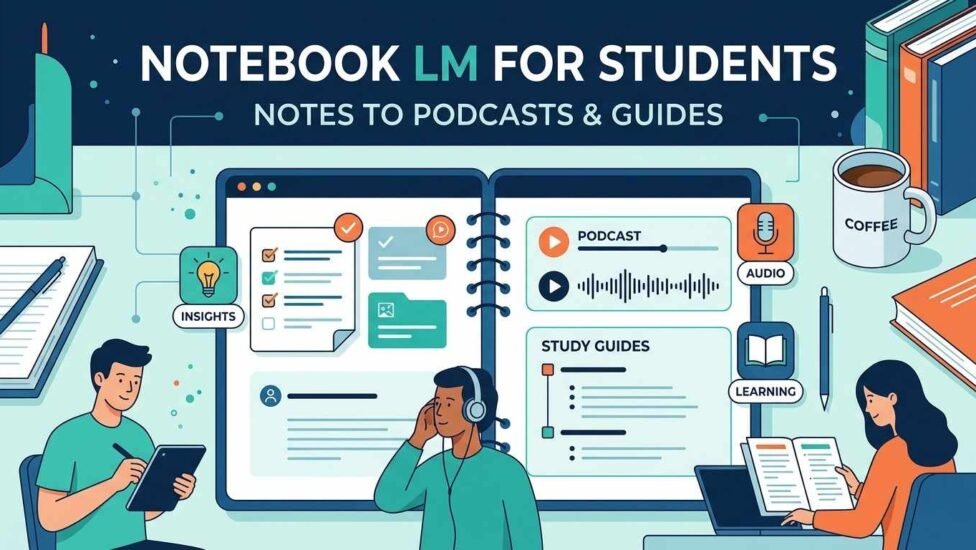
Exams are coming, your notes are scattered across PDFs, slides and lecture recordings, and you have no idea where to start. This is exactly where NotebookLM for students becomes a game-changer. Google’s free AI research tool can turn your own class material into a podcast you can listen to on the bus, a clean study guide, flashcards and practice quizzes, all in a few minutes.
In this guide, you will learn what NotebookLM is, how to set it up, how to turn notes into a podcast, and how to build a smart study routine around it without crossing the line into cheating.
Quick answer: NotebookLM is a free AI study tool from Google that answers questions using only the sources you upload, such as lecture notes, PDFs, slides and YouTube lectures. Students can use it to create podcast-style Audio Overviews, study guides, flashcards, quizzes, mind maps and video summaries, with citations that link back to their own notes.
What Is NotebookLM?
NotebookLM is an AI-powered notebook made by Google. Instead of searching the whole internet like a normal chatbot, it works only with the materials you give it. You create a “notebook” for a subject, add your sources, and NotebookLM becomes an expert on that material.
Every answer comes with small numbered citations. Click one, and NotebookLM shows you the exact sentence in your notes that the answer came from. For students, this matters a lot, because you can check every fact instead of trusting a random AI reply.
What Can You Upload?
- PDF files such as textbooks chapters, handouts and research papers
- Google Docs and Google Slides
- Website links and copied text
- YouTube video links, such as recorded lectures
- Audio files, such as voice recordings of a class
Why NotebookLM Is Perfect for Studying
- It stays on topic: Answers come from your course material, so it is far less likely to invent facts than a general chatbot.
- It learns your syllabus: Your professor’s slides and notes become the base for every answer, not generic internet content.
- It supports different learning styles: Listen to a podcast, read a study guide, watch a video summary or test yourself with a quiz.
- It saves time: Turning 60 pages of notes into a one-page summary takes seconds instead of hours.
- It is free to start: All you need is a Google account.
How to Use NotebookLM for Students: Step-by-Step Setup
Step 1: Create One Notebook Per Subject
Go to notebooklm.google.com and sign in with your Google account. Click Create new notebook. Make a separate notebook for each subject or exam, for example “Biology Midterm” or “History Unit 3”. Mixing subjects in one notebook makes answers less focused.
Step 2: Add Clean, Relevant Sources
Upload your lecture slides, class notes, assigned readings and any lecture recordings. Quality matters more than quantity. Remove duplicate files and anything off-topic, because NotebookLM can only be as good as the material you feed it.
Step 3: Read the Automatic Summary
Once your sources are added, NotebookLM creates a short overview of everything and suggests questions you can ask. This is a great first look at the big picture of the topic.
Step 4: Open the Studio Panel
The Studio panel is where the magic happens. From here you can create Audio Overviews, Video Overviews, mind maps, reports, flashcards and quizzes with one click.
How to Turn Your Notes Into a Podcast With NotebookLM
The Audio Overview feature turns your notes into a podcast-style conversation between AI hosts. It is perfect for revising while walking, commuting or doing chores.
Steps to Create Your Study Podcast
- Open your subject notebook and select the sources you want covered.
- In the Studio panel, click Audio Overview.
- Click Customize to tell the hosts what to focus on. For example: “Focus on chapters 4 and 5. Explain every key term simply and give one real-life example for each.”
- Choose a format and length, then generate.
- Listen in the app, change the playback speed, or download the audio to play offline.
Which Audio Overview Format Should You Choose?
| Format | What It Does | Best For |
|---|---|---|
| Deep Dive | Two hosts explore the material in detail | Learning a new chapter for the first time |
| Brief | One host gives a short summary of the core ideas | Quick revision before an exam |
| Critique | Hosts give feedback on your work | Improving your own essay or project draft |
| Debate | Hosts argue different sides of a topic | Essay topics, ethics, history and politics |
Pro tip: Make one short podcast per lecture instead of one long podcast for the whole course. Short episodes are easier to replay and review.
How to Make a Study Guide With NotebookLM
In the Studio panel, open Reports and choose Study Guide. NotebookLM will build a guide with key concepts, a glossary of important terms, short-answer questions and essay-style questions, all based on your sources.
Other useful report types for students include:
- Briefing Doc: a clear summary of the main points and key quotes.
- Timeline: great for history and events in order.
- FAQ: a list of likely questions and answers on the topic.
- Custom report: describe your own format, such as “a one-page cheat sheet with formulas”.
NotebookLM Flashcards and Quizzes
Reading notes again and again feels productive, but testing yourself is what builds real memory. NotebookLM can create flashcards and multiple-choice quizzes directly from your material.
- Choose the topic and difficulty level before generating.
- Use the Explain option when you get an answer wrong. It walks you through the correct answer with citations from your notes.
- Share a flashcard set or quiz by link with your study group.
Use flashcards daily for definitions and facts, and take a quiz at the end of each week to see what you have actually learned.
Other NotebookLM Features Students Should Try
Video Overviews
Video Overviews turn your sources into a narrated slideshow with visuals and key points. They are helpful for visual learners and for topics with diagrams, processes or data.
Mind Maps
A mind map shows how the main ideas in your notes connect to each other. Click any branch to ask NotebookLM about that idea. It is a great way to see the “big picture” before an exam.
Learning Guide
Learning Guide changes the chat into a tutor. Instead of just giving answers, it asks you open-ended questions and breaks hard problems into smaller steps, so you actually understand the topic.
Google Classroom Integration
If your university uses Google Workspace for Education, you may be able to open NotebookLM straight from Google Classroom and build a personal notebook from your course materials. Availability depends on your school’s settings.
Best NotebookLM Prompts for Students
Copy these prompts into the NotebookLM chat to get better results:
- “Explain the main idea of this chapter as if I am 15 years old.”
- “List the 10 most important terms from these notes with simple definitions.”
- “Create 5 exam-style questions from lecture 3 and show the answers separately.”
- “Compare theory A and theory B in a table.”
- “What topics in these notes are most likely to appear in an exam?”
- “Find any parts of my notes that seem unclear or incomplete.”
- “Summarize this YouTube lecture in 7 bullet points.”
A Simple Weekly Study Routine With NotebookLM
- After each class: Upload the slides and your notes the same day.
- Same evening: Generate a Brief Audio Overview and listen to it once.
- Next day: Read the Study Guide and write your own summary in your own words.
- Daily: Spend 10 minutes on flashcards.
- End of week: Take a quiz and use Explain on every wrong answer.
- Before the exam: Use the mind map and a Deep Dive podcast to review everything.
NotebookLM vs ChatGPT for Studying
| Feature | NotebookLM | General Chatbot |
|---|---|---|
| Main source of answers | Your uploaded notes | General training data and the web |
| Citations to your notes | Yes, on every answer | Usually |